
In this guide1 / 3
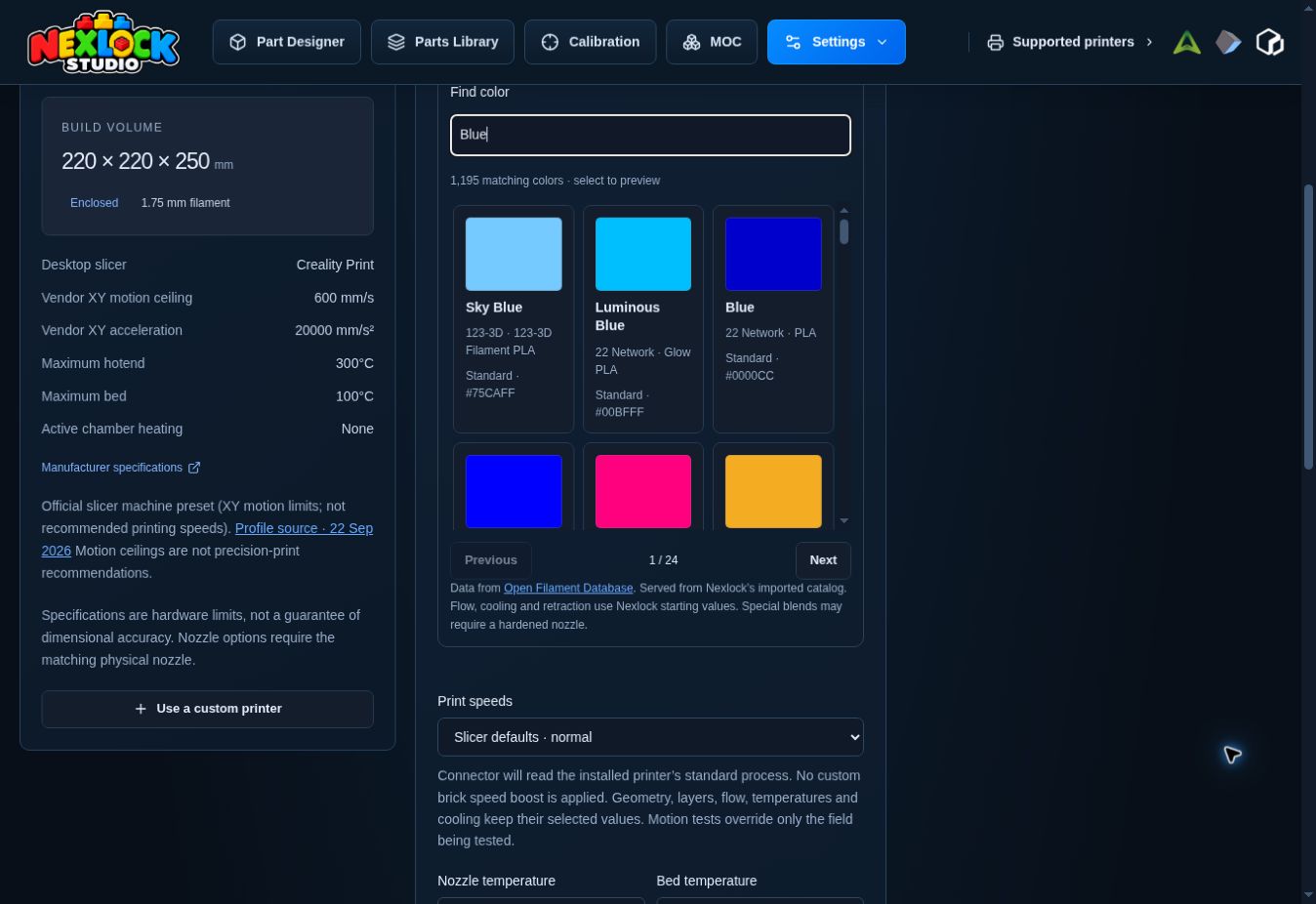
Use the filament selector below Export & downloads in the designer, in Calibration → Test bench → Printer & starting recipe, or in Print settings → Print recipe. Choose PLA or PETG, then a brand and available type.
Search a color name or compare the visible swatches. Select the exact entry matching your spool when available.
Review the active recipe after selecting the entry. With automatic fit enabled and an exact Tested match, the complete recorded profile takes precedence over catalog and starting values. Otherwise, available catalog properties and Nexlock starting values supply the recipe; a catalog entry is not a complete measured print profile.
Confirm the selected filament and appearance in the viewer, then inspect the final recipe before native transfer.
The filament catalog uses Open Filament Database data for PLA and PETG variants. The current record and brand counts, plus the imported snapshot date, follow the wiki’s generated reference data. This website does not claim that the catalog is fetched live from every manufacturer each time you open it.
Color, additive and finish variants can behave differently even within the same material family. A dry spool, suitable temperature and calibrated extrusion process matter more than the catalog label alone.
Swatches and material rendering help select colors visually. A displayed HEX color is an approximation, not a measured sample under your room lighting. STL does not carry preview color; ordinary 3MF can include visual metadata.
Changing filament or material can change the recipe and invalidate earlier evidence. Check whether Auto-select Tested fit applied a different matching profile or shows Needs testing. Compare its recorded spool with the one loaded, and record brand, type, color and batch in verification so you can repeat the tested conditions later.